Local LLMs (Large Language Models) are changing the game for developers, writers, and privacy advocates. Running a model on your own hardware means your data never leaves your computer, you can customize your experience, and you don’t need an active internet connection to chat.
But sometimes, getting the model to load isn’t seamless.
This post will walk you through the entire process of setting up a popular, compact model: SmolLM2-1.7B-Instruct with Q3_K_L quantization, specifically using LM Studio on Windows. We will also tackle one of the most common errors users face.
The Subject Model: SmolLM2-1.7B-Instruct
Why are we focusing on this model? Because it is tiny but mighty.
- Size: At only 1.7 Billion parameters, this model can run comfortably on almost any modern laptop, even those without a powerful, discrete GPU.
- Instruct-Tuned: This variant is designed specifically to follow instructions and engage in chat, making it a great drop-in replacement for hosted assistants for simple tasks.
- Performance: Hugging Face developed this as part of their SmolLM effort to see just how much performance can be packed into a small footprint. It is incredibly efficient.
Step 1: Setting up LM Studio
LM Studio is a fantastic, free (for non-commercial use) application that simplifies running LLMs.
- Download and Install: If you haven’t already, go to the LM Studio website and download the Windows installer. Run the installer to set up the application.
- Launching: Open LM Studio. You will see a clean, easy-to-use interface.
Step 2: Selecting and Downloading the Model
This is where you tell LM Studio what model you want to run.
- Use the Search: Click the magnifying glass icon (Search) on the left sidebar.
- Input Search: Type in “SmolLM2-1.7B-Instruct”.
- Find the Best Match: You will likely see several versions from different uploaders. We recommend looking for versions provided by reliable community sources or the original creator, Hugging Face TB.
- Selecting the Quantization (The Important Part): Once you select a model, a list of “Download Options” will appear. You will see options like Q2, Q3, Q4, etc.
- What is Quantization? It’s a technique that “shrinks” the model’s math. A “full-size” (fp16) 1.7B model might require 3.5GB of RAM just to hold it.
- Q3_K_L: We are selecting the Q3_K_L variant. “Q3” means it uses 3 bits to store its weights (instead of the original 16). The “_K_L” refers to the specific quantization algorithm used (k-quant, large variant). This is a balance: it makes the file smaller and uses less RAM, but very slightly degrades model accuracy compared to Q4 or Q5.
- Download: For a 1.7B model, Q3_K_L is a great choice for low-memory systems. Click “Download.” LM Studio will download the file (which should be around 1 GB).
Step 3: Troubleshooting the Infamous “Failed to Load” Error
This is where many beginners get stuck. You’ve downloaded your model, you go to the AI Chat tab, select your new model, and… error.
You get a scary pop-up like this:
Failed to load the model
Failed to load LLM engine from path: C:\Users…\llm_engine_cuda.node is not a valid Win32 application.
What Does This Mean?
The error “is not a valid Win32 application” usually means that the application (LM Studio) is trying to use a system file (the llama.cpp engine) that is corrupted, incomplete, or incompatible with your specific hardware drivers.
This is a common problem after updates or when first setting up a system with a mix of integrated and discrete graphics. The good news is that it is usually easy to fix.
Step 4: How to Fix the “Failed to Load” Error
Do not delete your model or uninstall LM Studio yet! Follow these three troubleshooting steps:
Fix 1: Refresh LM Studio Runtimes (The Easiest Fix)
LM Studio downloads “runtimes” (the actual engine that runs the AI) dynamically. Sometimes this download gets interrupted.
- While LM Studio is open, simply press Ctrl + Shift + R on your keyboard. This forces LM Studio to re-index and often fixes runtime issues.
Fix 2: Force a Redownload of the Core Backend
The error points directly to a specific folder: C:\Users\[YourUsername]\.lmstudio\extensions\backends\llama.cpp...
If that file is corrupted, LM Studio needs to redownload it.
- Close LM Studio completely.
- Open Windows File Explorer.
- Navigate to:
C:\Users\hp\.lmstudio\extensions\backends\(replacehpwith your Windows username). - Delete the entire folder referenced in the error (something like
llama.cpp-win-x86_64-nvidia-cuda-avx2...). - Restart LM Studio. It will detect the missing backend and automatically download a new, clean version. Try loading the model now.
Fix 3: Disable GPU Acceleration (Bypass the CUDA Error)
If Fix 1 and 2 don’t work, there might be a direct conflict between the LM Studio runtime and your Nvidia GPU drivers. You can bypass the Nvidia backend entirely by telling LM Studio to use your processor (CPU).
- In LM Studio, go to the AI Chat or Playground tab.
- On the right-hand sidebar, find the GPU Offload settings.
- Make sure the slider is set to 0, or if there is a dropdown, switch the “Hardware” setting from GPU (Nvidia/CUDA) to CPU llama.cpp.
- Try loading the model. It will use CPU power instead of GPU power. While slightly slower, a 1.7B model should still run acceptably on a modern processor.
Step 5: Start Conversing Locally
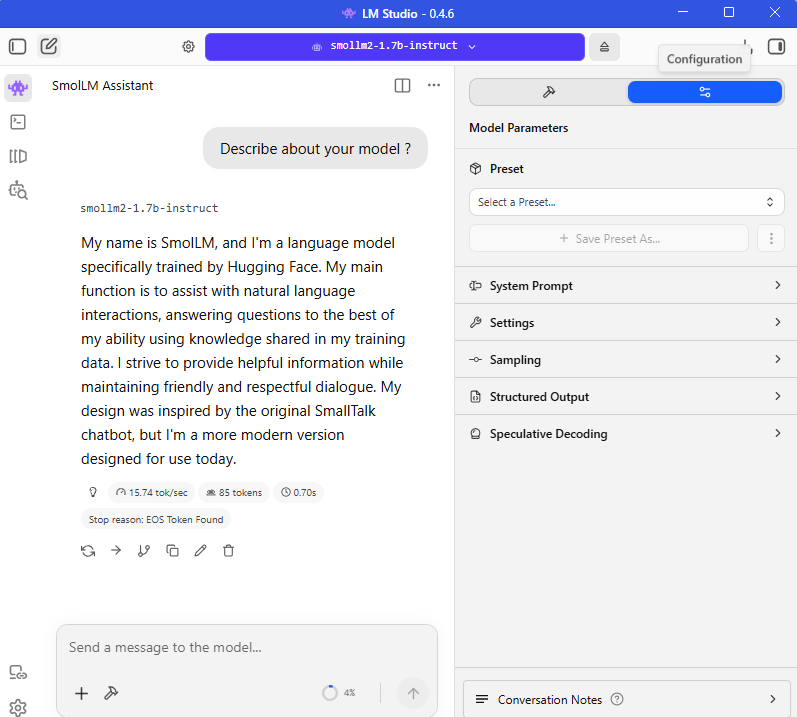
Once the model loads without an error, you will see it listed as “Loaded” in the top bar.
You can now use the SmolLM2-1.7B-Instruct just like any other chatbot. Try asking it to:
- Describe about your model ?
This small model is excellent for summaries, basic Q&A, and simple creative writing prompts.
Conclusion
Running local AI is easier than ever, but troubleshooting is still part of the journey. By quantizing your model to Q3_K_L, you’ve ensured that SmolLM2 runs efficiently. By knowing how to fix the “not a valid Win32 application” error, you’ve overcome the biggest hurdle facing Windows users.